URL sharing lets you generate one or more links to a dashboard, which you then share yourself with your colleagues, managers, partners or store network.
You choose whether the link is public or requires authentication, and you can limit the data displayed using the dashboard filters or the properties of users and recipients. No email is sent: it is up to you to share the link.
Which sharing mode should you choose?
- Access: the recipient opens the dashboard with the link they were given.
- Recipient homepage: the dashboard does not appear there.
- Automatic email: no.
- Validity: link valid for up to 365 days.
- Targeting by property: no.
- Access: the recipient opens the dashboard with the link received by email.
- Recipient homepage: the dashboard does not appear there.
- Automatic email: yes, as a one-time or recurring send.
- Validity: link valid for 365 days by default.
- Targeting by property: yes.
- Access: the recipient opens the dashboard from their Skeepers homepage, after logging in.
- Recipient homepage: the dashboard appears there.
- Automatic email: no.
- Validity: tied to the recipient's access.
- Targeting by property: yes.
A dashboard shared by URL does not appear on the recipient's homepage. For it to appear there, you need to create a "Via Skeepers access" distribution.
Find your situation
The link has exceeded its validity period (up to 365 days).
See the section Expired link.
They are not authorized: the link requires logging in as a user or recipient of the account.
See the section Unauthorized access.
The dashboard was shared with them by URL, not via Skeepers access, so it does not appear on their homepage.
See the section "No dashboard has been shared with you" message.
Once logged in, they simply need to click the dashboard link again.
See the section Redirection after a first login or a password change.
The selected filters are incompatible with each other, or the recipient's property value is missing or misspelled.
See the section No data or filters not applied.
Before you start: enable sharing
By default, sharing is disabled on every dashboard. You need to enable it manually:
- Open the dashboard you want to share.
- Click the "Share dashboard" button.
-
Click "Sharing enabled" until the button turns green.
Set up URL sharing
1. Choose the link security level
-
Public link: anyone who has the link can open the dashboard.
-
Authenticated link: the person must log in as a user or recipient of the account to open the dashboard.
A public link can be viewed by anyone who obtains it, without any access control. Use an authenticated link to protect your data.
2. Set the validity period
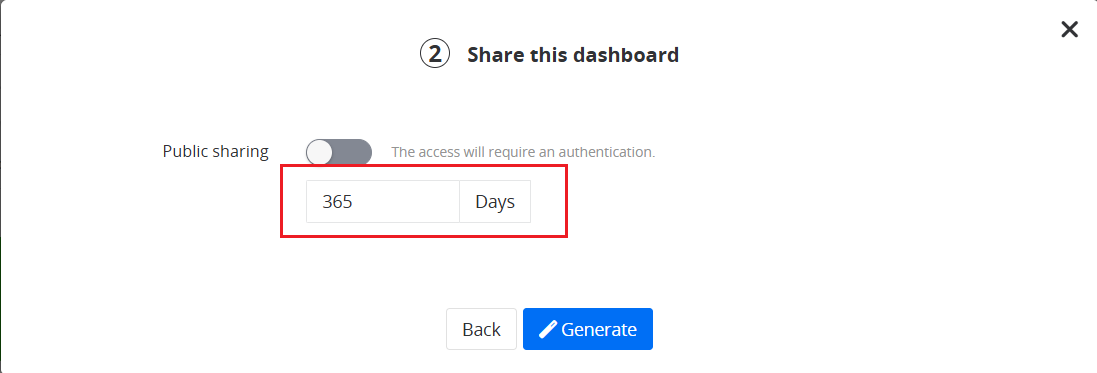
3. Limit the data displayed
In the "Restrict the dashboard to certain filters" section, you limit the visible data using:
- the filters already set up on the dashboard;
- the properties of the user or recipient (only with an authenticated link).
Filters you do not restrict remain available and usable by anyone who has the link.
4. Generate and share the link
Click "Generate" to get the access link(s). You can then:
- open the link in a new tab;
- copy the link.
Access the shared dashboard
Each link is unique. The recipient must always use the link they were given: they cannot access the shared dashboard with the generic back-office link.
We recommend opening the link in a private browsing window, with browser extensions disabled. This avoids authentication conflicts with the platform.
Resolve common situations
Expired link
The link to view this dashboard has expired. Please contact your Skeepers point of contact to get new access.
Generate a new link and send it to the recipient.
Tip: to avoid having to renew links, use email sharing with a recurring send (for example once a month). The link is refreshed with each new send. Alternatively, use a Via Skeepers access share if the person has access to the recipient admin interface.
Unauthorized access
If the link is authenticated, a person who is neither a user nor a recipient of the account cannot open the dashboard: an error message is displayed. Create a recipient access for them, or use another sharing mode.
"No dashboard has been shared with you" message
This message does not mean the recipient has lost access. The dashboard was shared with them by URL, so it does not appear on their homepage.
The recipient can use the link they were given again. For the dashboard to appear on their homepage, create a "Via Skeepers access" distribution.
Redirection after a first login or a password change
After a first login or a password change, the recipient may land on the homepage instead of the dashboard. Once logged in, they simply need to click the dashboard link again: it will open directly.
No data or filters not applied
- Incompatible filters: if the combined filters cannot match the same data (for example City = Paris and Country = USA), the dashboard shows no data.
- Property filter: check that the recipient's profile contains a value for the property used, and that this value is written exactly as in the share settings.
Best practices
- Use an authenticated link rather than a public link.
- Before a large-scale share, test your profiles and filters with "test" accounts: log in with these accounts to check that the data displayed matches the properties of each profile.
- Check that your combined filters are compatible with each other.
Glossary
Read-only access, limited to viewing dashboards.
A link that anyone who has it can open, without logging in.
A link that requires logging in as a user or recipient of the account.
Information assigned to a user or recipient (store, region, country, role…), used to filter their data.